Getting Started - iSpindel
Step 1. Create an iSpindel in the app
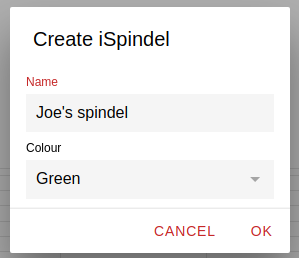
Tap on Add an Ispindel on the home screen or + Spindel from the side menu and give your spindel a name and an optional colour
Step 2. Configure your iSpindel
Press the reset button on your spindel a couple of times so it goes into operation mode, this will start a wifi network named 'iSpindel'
Connect to the iSpindel wifi and open a browser, it should take you to the iSpindel configuration page
If it doesn't, you can go there manually by going to the following url: http://192.168.4.1
Click on 'Configuration' and enter the following:
SSID: The wifi network name that your spindel will connect to
Password: The password for the wifi network that your spindel will connect to
Update Interval: For normal operation 900 seconds is a good value (15 minutes), but while testing and calibrating you can set to to 30 seconds or lower. Remember to change it to a higher value as it will drain your battery (and spam the server)
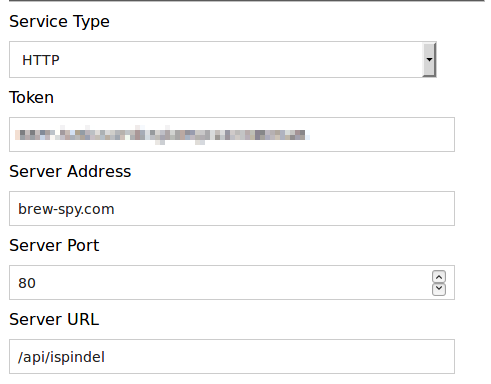
Service Type: HTTP
Token: Paste in the token as shown in the setup tab of your spindel in the app
Server Address: brew-spy.com
Server URL: /api/ispindel
Click on Save
For more info on setting up your iSpindel have a look here: https://github.com/universam1/iSpindel/blob/master/docs/README_en.md#configuration
Step 3. Receive iSpindel data in BrewSpy
The spindel should now start sending data to the BrewSpy server
Launch the app and see if you've received any data. Swipe down to refresh the screen.
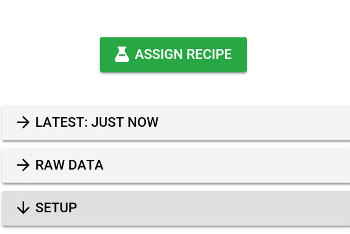
If the iSpindel has successfully sent data to the server you should see a Latest Data and Raw Data tab.
If you do not see any changes in Brewspy after some time - swipe down to refresh the data. If still no data, check that your configuration in step 2 is correct and that your iSpindel can connect to your wifi network.
Step 4. Calibrate your iSpindel
You can now calibrate your iSpindel, if you haven't done so already
You can either calibrate manually using the instructions at: https://github.com/universam1/iSpindel/blob/master/docs/Calibration_en.md
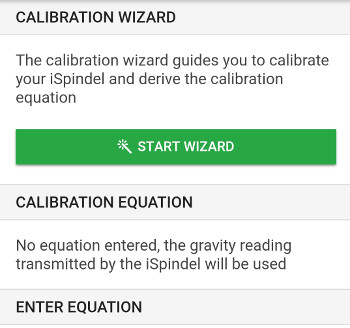
or you can use the Caliration Wizard in the app, which guides you to calibrate your iSpindel using the easy method in the guide above
Once you have your calibration equation you can enter it in the app. This is optional, and if no calibration equation is entered the app will use the one entered in the iSpindel's configuration. However having it in the app is move convenient, as you don't have to launch the iSpindel in configuration mode if you ever need to change it.
To access the Calibration options in the app, expand the Calibration tab and click on the Calibration button
Step 5. Brew a beer
Brew a beer as you would normally would
Step 6. Start tracking fermentation progress in BrewSpy
Once you've pitched in the yeast and your iSpindel in your freshly brewed beer, you can start tracking the fermentation progress of your batch in BrewSpy
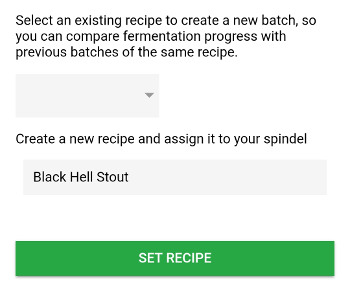
Simply tap on the big green Assign Recipe button and give your beer a name - or you can select a previously entered beer from the drop down list
BrewSpy will then start showing you a nice little graph, showing the fermentation progress, as well as some statistics regarding your latest brew
Once fermentation stops, tap on the big red Stop button to stop logging the iSpindel data on that recipe