Setting up PLAATO Airlock
Step 1. Create a PLAATO Airlock in the app
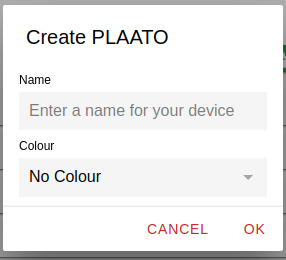
Tap on Add a PLAATO Airlock on the home screen or + PLAATO from the side menu and give your airlock a name and an optional colour
Step 2. Configure your PLAATO Airlock
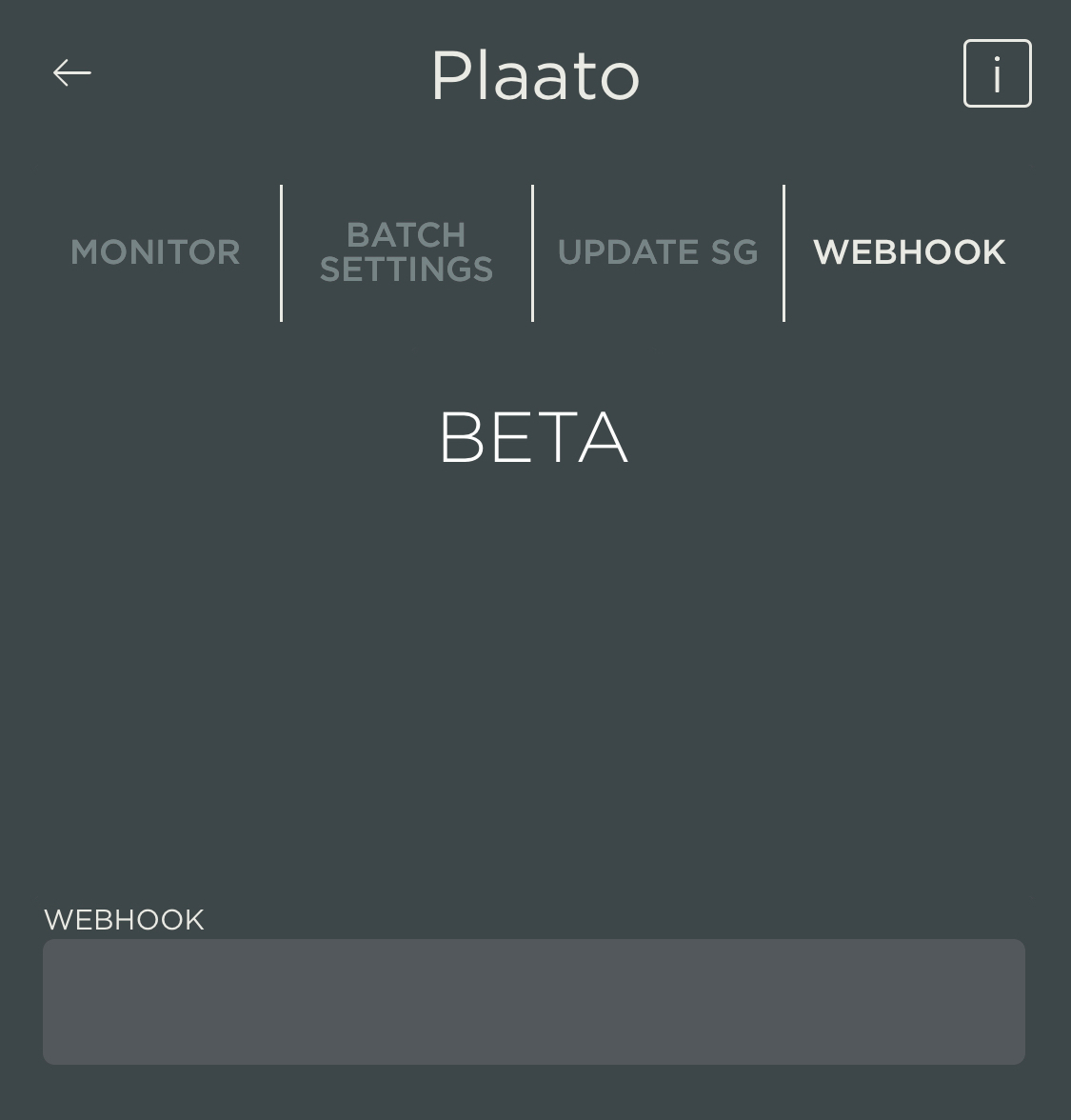
Launch the PLAATO app and go to the WEBHOOK tab. There enter the Webhook URL as it is displayed in the BrewSpy app under the Setup tab for your PLAATO Airlock.
If you have more PLAATO Airlocks you don't need to go through this step again, they will be picked up by BrewSpy and added in the app automatically
Step 3. Receive PLAATO data in BrewSpy
The PLAATO airlock should now start sending data in 5 minute intervals to BrewSpy.
Launch the app and see if you've received any data. Swipe down to refresh the screen.
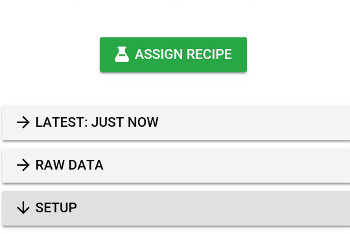
If the PLAATO airlock has successfully sent data to BrewSpy you should see a Latest Data and Raw Data tab as the screenshot below.
If you do not see any changes in Brewspy after some time - swipe down to refresh the data. If still no data, check that the Webhook Url was saved correctly on the recipient device and that it has access to the internet.