Setting up a Tilt Hydrometer
Step 1. Create a Tilt in the app
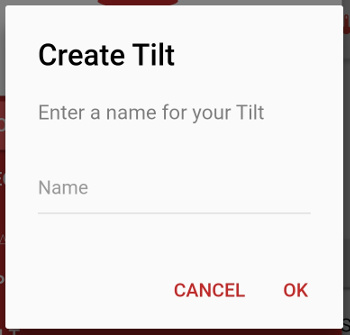
Click on Add a Tilt Hydrometer from the Home screen or + Titlt from the side menu and give your Tilt a name.
Step 2. Configure your Tilt Hydrometer
You now need to configure your Tilt Hydrometer to send its data to the BrewSpy server
To do so, enter the Cloud Url as shown in the app either in the Tilt app or Tilt Pi, depending on what you are using
If you have mulitple Tilts of different colors, you can reuse the same URL for all your Tilts and they will be automatically discovered by BrewSpy
Step 3. Receive Tilt data in BrewSpy
The Tilt Hydrometer should now start sending data to the BrewSpy server
Launch the app and see if you've received any data. Swipe down to refresh the screen.
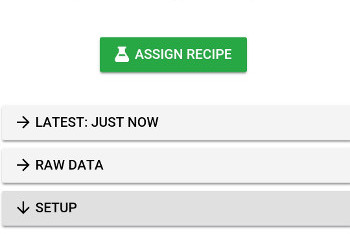
If the Tilt Hydrometer has successfully sent data to the server you should see a Latest Data and Raw Data tab.
If you do not see any changes in Brewspy after some time - swipe down to refresh the data. If still no data, check that the Cloud Url was saved correctly on the recipient device and that it has access to the internet.